ImageMake
  • 画像を作成
  • 画像生成モデル
    • 画像生成ワークスペース対応モデルで画像を生成・編集
    • GPT Image 2新着OpenAIによる画像生成と参照画像編集
    • Nano Banana 2新着複数参照に対応した高速なGoogle画像生成
    • Nano Banana Pro高精細なGoogle画像生成と編集
    • Nano Banana Flash高速で効率的な画像生成と編集
    • Seedream 5.0新着細部まで鮮明なクリエイティブ画像生成
    • Flux 2柔軟な画像生成と参照ベース編集
    • Qwen Image 2文字表現に強い多用途の画像生成
    • Z-Image高速なオープンウェイト画像生成
    • Qwen Image 3新着構造化プロンプト、多言語テキスト、豊かなビジュアル表現
    • SeaArt AIExplore a clearly labeled SeaArt AI compatibility workflow on ImageMake.
    • Canva AIExplore a clearly labeled Canva AI compatibility workflow on ImageMake.
    • Leonardo AIExplore a clearly labeled Leonardo AI compatibility workflow on ImageMake.
    • Lovart AIExplore a clearly labeled Lovart AI compatibility workflow on ImageMake.
  • AI動画
    • 動画ワークスペースを開く現在接続されているすべてのモデルで動画を作成
    • MiniMax H3新着MiniMax H3のワークフロー、プロンプト、動画制作方法を確認できます
    • InVideo AIExplore a clearly labeled InVideo AI compatibility workflow on ImageMake.
    • VEED AIExplore a clearly labeled VEED AI compatibility workflow on ImageMake.
    • Vidu AIExplore a clearly labeled Vidu AI compatibility workflow on ImageMake.
    • DeeVid AIExplore a clearly labeled DeeVid AI compatibility workflow on ImageMake.
    • Sora AIExplore a clearly labeled Sora AI compatibility workflow on ImageMake.
    • Qwen AI VideoExplore a clearly labeled Qwen AI Video compatibility workflow on ImageMake.
  • 画像ツール
  • 料金
日本語
  • English
  • 中文
  • 日本語
  • 한국어
  • Español
  • العربية
  • 繁體中文
ImageMake
I2 · Compatibility explorer

Lovart AI Image Generator Workflow on ImageMake

Searching for Lovart AI image-generator ideas? Turn a design direction into a structured visual brief, then make the image in ImageMake.

Compatibility workflow · run on ImageMake
Run here

Use the same brief in an available ImageMake workspace.

Use the live work order on the left and one fixed showcase result on the right.

生成したい画像を説明してください

1枚生成 · 合計18クレジット

Compatibility page: Lovart AI is the topic, while the live ImageMake AI Image Generator runs Nano Banana 2. Fixed visuals are user-approved public showcase media used only to illustrate the template; prompt cards are ImageMake workflow examples. Neither is presented as output from Lovart AI. This is an ImageMake compatibility workflow, not a Lovart AI runtime. Fixed visuals are user-approved public showcase media for template illustration; they are neither Lovart AI nor ImageMake outputs.
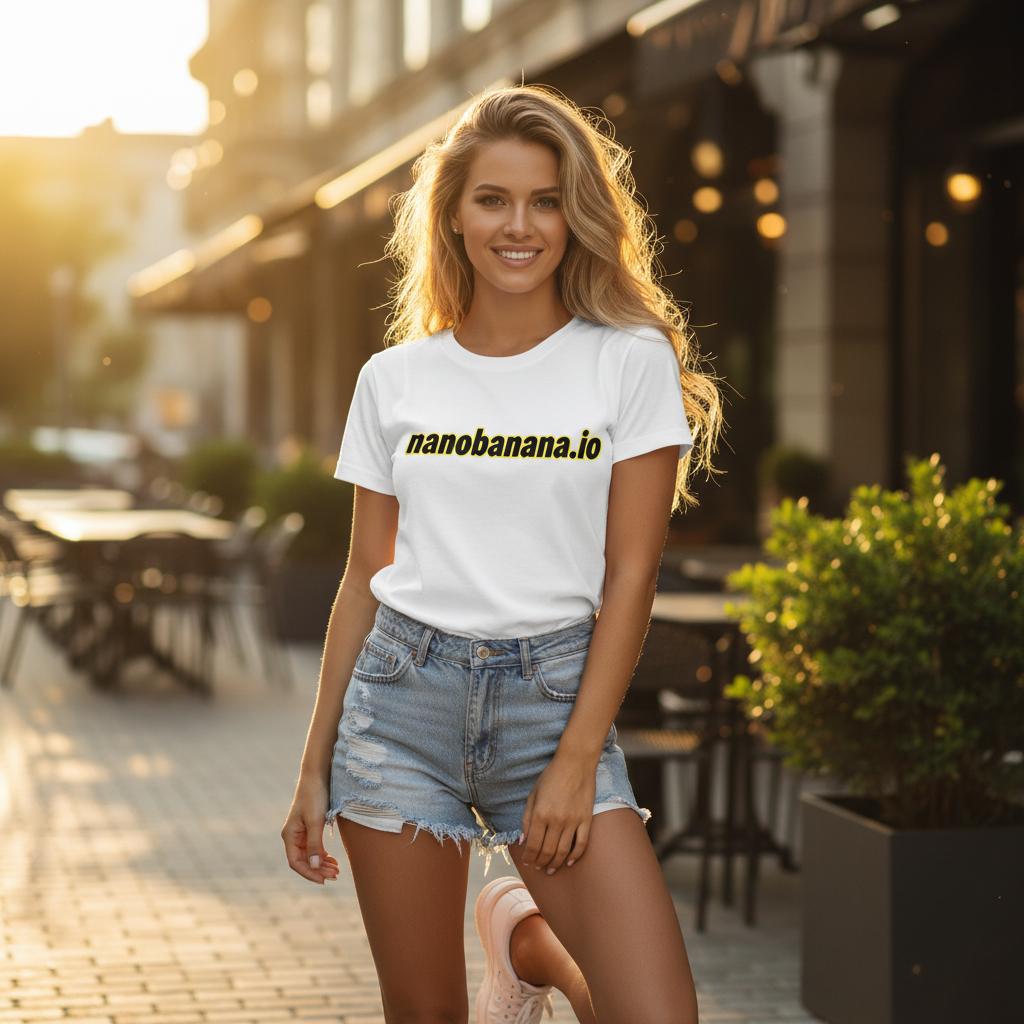
Public Nano Banana demo image used in the compatibility explorer

Target

Lovart AI

Search intent and workflow context for the target name. This page does not claim to run it.

Runs here

ImageMake workspace

Compatibility page: Lovart AI is the topic, while the live ImageMake AI Image Generator runs Nano Banana 2. Fixed visuals are user-approved public showcase media used only to illustrate the template; prompt cards are ImageMake workflow examples. Neither is presented as output from Lovart AI. This is an ImageMake compatibility workflow, not a Lovart AI runtime. Fixed visuals are user-approved public showcase media for template illustration; they are neither Lovart AI nor ImageMake outputs.
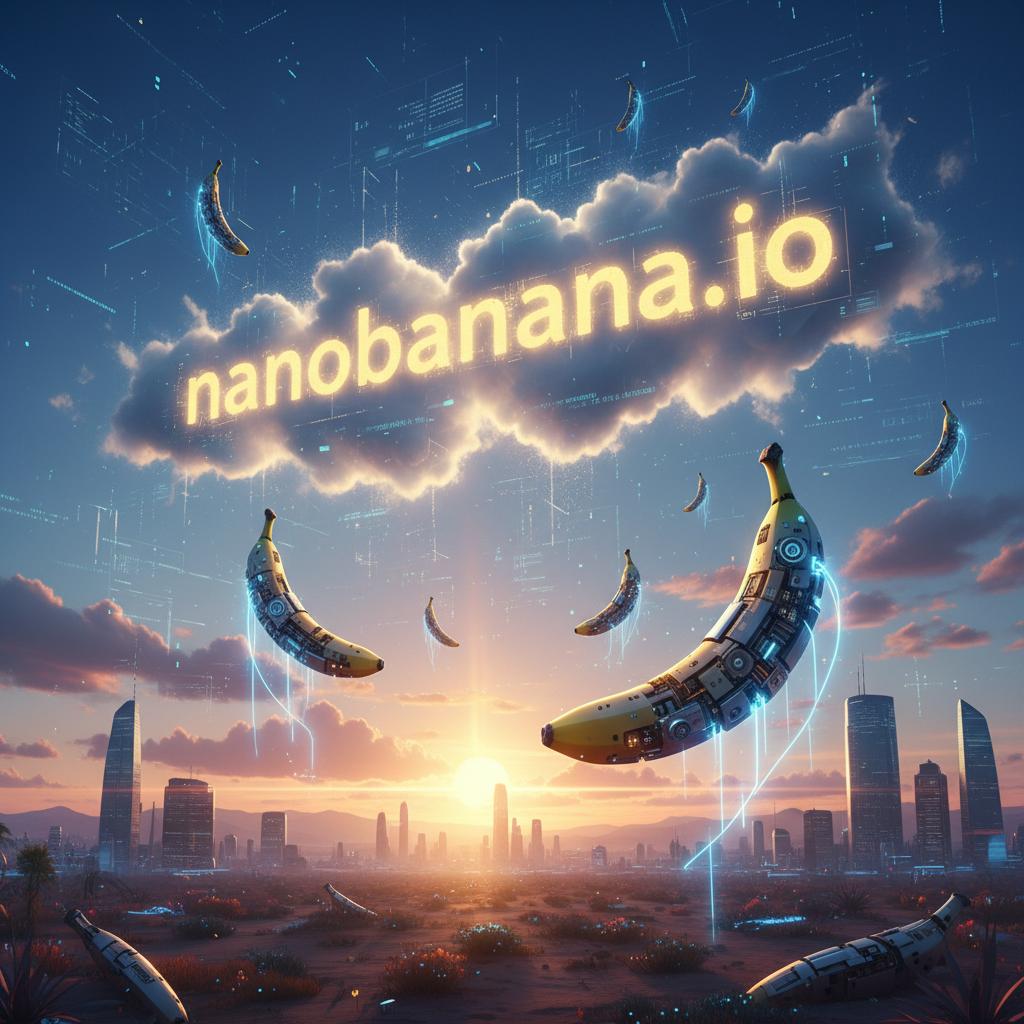
Inspired output

A second example with clear provenance.

Public Nano Banana demo image used in the compatibility explorer

Public showcase image · user-approved direct use

Structured explainer

A public showcase image staged for workflow review.

Useful next steps

Keep the compatibility decision visible.

Use ImageMake for the working image

Choose ImageMake when you want this page’s visual brief to be generated and refined in the current workspace.

Keep creative roles clear

Separate the project’s design goal, the image brief, and later production work so each review is specific.

FAQ

Common questions

Does ImageMake run Lovart AI on this page?

No. This is a Lovart AI-oriented compatibility workflow. The image-generation step is performed by the ImageMake AI Image Generator.

Are the example images Lovart AI outputs?

No. Fixed visuals are user-approved public showcase media used for template illustration, and prompt cards are ImageMake workflow examples. Neither is represented as Lovart AI output.

How can I turn a design direction into an image prompt?

State the audience and goal first, then define the subject, composition, palette, material cues, lighting, and desired output format.

What should I review after the first image?

Review whether the focal subject, visual hierarchy, palette, and empty space match the intended design direction.

Related ImageMake pages

SeaArt AI Image Generator Workflow on ImageMake

Plan a SeaArt AI-oriented image brief, then create the image in the ImageMake AI Image Generator with a transparent compatibility workflow.

Canva AI Image Generator Workflow on ImageMake

Turn Canva AI-oriented design-image ideas into a clear ImageMake prompt and generate the image in an openly disclosed compatibility workflow.

Leonardo AI Image Generator Workflow on ImageMake

Use a Leonardo AI-oriented concept-art or campaign-image brief with the ImageMake AI Image Generator in a clearly disclosed compatibility workflow.

リソース
  • 画像を作成
  • 価格
  • 画像からプロンプト
  • 複数画像からプロンプト
会社 & 法的情報
  • 会社情報
  • お問い合わせ
  • プライバシーポリシー
  • 利用規約
  • 返金ポリシー
画像生成モデル
  • Nano Banana Pro
  • Nano Banana 2
  • GPT-4o
  • Seedream 4.5
  • Seedream 4.0
  • Flux 2 Pro
  • Flux 2
  • Qwen Image 2
  • Z-Image
  • NanoBanana Flash
  • Qwen Image 3
ImageMake

ImageMake.pro|日本語で使える画像生成AI

[email protected]

このウェブサイトは独立したサードパーティプラットフォームです。本サイトで言及されているAIモデルプロバイダーとは提携関係になく、公式代表でもありません。すべての商標およびブランド名はそれぞれの所有者に帰属します。

© 2026 ImageMake.pro。無断転載を禁じます。

プライバシーポリシー