ImageMake
  • Create
  • AI Image
    • Open Image WorkspaceCreate or edit images with all supported models
    • GPT Image 2NewOpenAI image generation and reference-guided editing
    • Nano Banana 2NewFast Google image generation with multi-reference editing
    • Nano Banana ProHigh-fidelity Google image generation and editing
    • Nano Banana FlashFast, efficient image generation and editing
    • Seedream 5.0NewHigh-detail creative image generation
    • Flux 2Flexible generation and reference-based editing
    • Qwen Image 2Versatile image generation with strong text rendering
    • Z-ImageFast open-weight image generation
    • Qwen Image 3NewStructured prompts, multilingual text, and rich visual detail
    • SeaArt AIExplore a clearly labeled SeaArt AI compatibility workflow on ImageMake.
    • Canva AIExplore a clearly labeled Canva AI compatibility workflow on ImageMake.
    • Leonardo AIExplore a clearly labeled Leonardo AI compatibility workflow on ImageMake.
    • Lovart AIExplore a clearly labeled Lovart AI compatibility workflow on ImageMake.
  • AI Video
    • Open Video WorkspaceCreate videos with all currently connected models
    • MiniMax H3NewExplore MiniMax H3 workflows, prompts, and video creation techniques
    • InVideo AIExplore a clearly labeled InVideo AI compatibility workflow on ImageMake.
    • VEED AIExplore a clearly labeled VEED AI compatibility workflow on ImageMake.
    • Vidu AIExplore a clearly labeled Vidu AI compatibility workflow on ImageMake.
    • DeeVid AIExplore a clearly labeled DeeVid AI compatibility workflow on ImageMake.
    • Sora AIExplore a clearly labeled Sora AI compatibility workflow on ImageMake.
    • Qwen AI VideoExplore a clearly labeled Qwen AI Video compatibility workflow on ImageMake.
  • Tools
  • Pricing
English
  • English
  • 中文
  • 日本語
  • 한국어
  • Español
  • العربية
  • 繁體中文
ImageMake
Resources
  • Create
  • Pricing
  • Image to Prompt
  • Batch Image to Prompt
Company & Legal
  • About
  • Contact
  • Privacy Policy
  • Terms of Service
  • Refund Policy
AI Image
  • Nano Banana Pro
  • Nano Banana 2
  • GPT-4o
  • Seedream 4.5
  • Seedream 4.0
  • Flux 2 Pro
  • Flux 2
  • Qwen Image 2
  • Z-Image
  • NanoBanana Flash
  • Qwen Image 3
ImageMake

ImageMake.pro | AI Image Generation and Editing Workspace

[email protected]

This website is an independent third-party platform. We are not affiliated with, endorsed by, or officially representing any AI model providers referenced on this site. All trademarks and brand names belong to their respective owners.

© 2026 ImageMake.pro. All rights reserved.

Privacy Policy
Functional tool

AI Photo to Video Generator

Start from one still image, protect its key composition, and describe the subject motion and camera move for a short video.

Workspace

Input, output, and task controls

The workspace is intentionally direct: supply the task input, set only controls that affect the result, then review the generated output.

Enter text, describe the content, movement... (e.g. A 3D boy skateboarding in the park.)

Generate 1 video · 40 credits total

Available ImageMake workflow: the live ImageMake AI Video Generator runs Google Veo 3.1 Fast for this task. This integrated photo-to-video workflow uses Google Veo 3.1 Fast with your uploaded photo as the first frame. Keep the requested motion focused so the source composition remains recognizable.
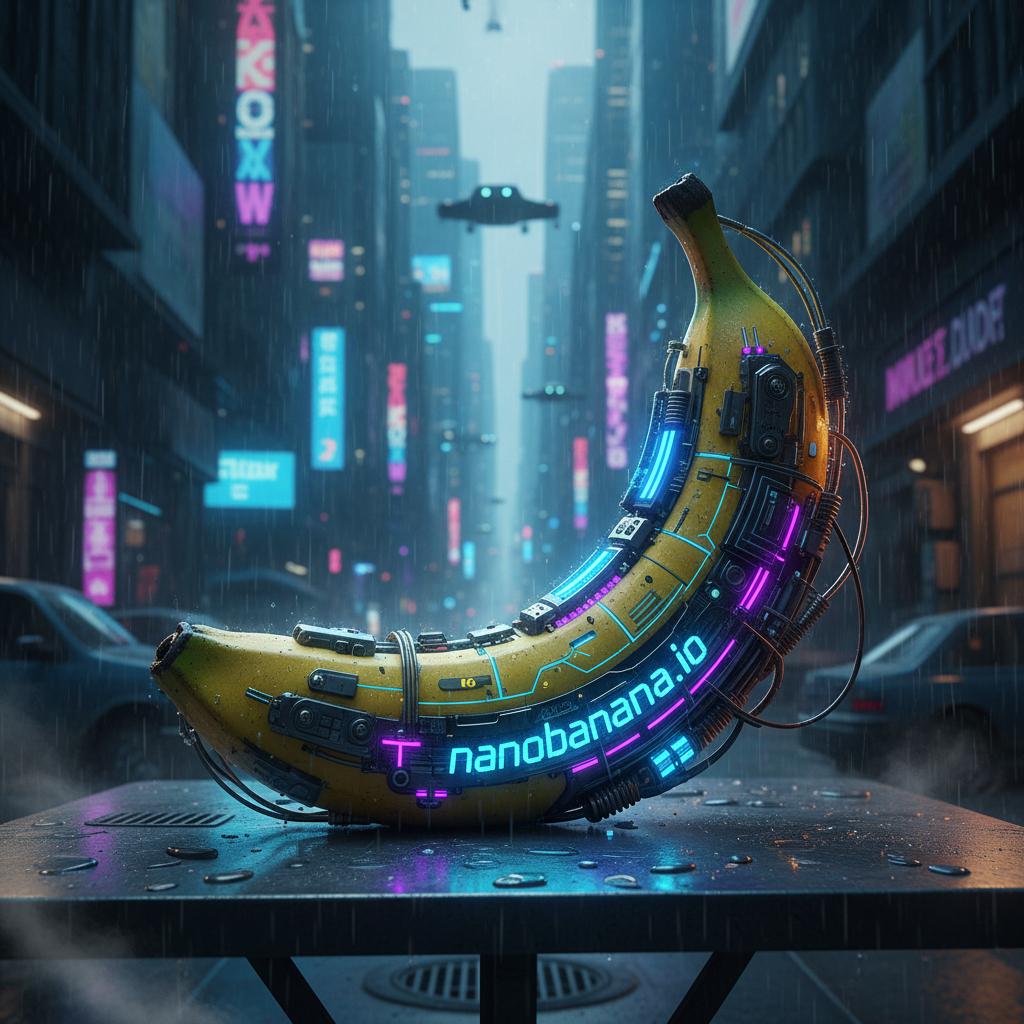
Public Nano Banana task workspace reference
Three steps

A deliberate path

Use these steps as a planning sequence, then adapt the details to the active workspace.

Upload a clear photo

Choose an image with a readable subject, clean edges, and room for the motion you want to add.

Describe one motion idea

Specify the subject action, camera direction, and what should remain stable from the original photo.

Generate and review the clip

Check identity, framing, movement, and the final hold before exporting the new video.

Task examples

Plan a focused result

Public Nano Banana task workspace reference

Public task-workspace reference

Harvested public workspace reference for task-first composition review.

Motion review

A local review-stage workflow visual.

Focused motion brief

Preserve a clear subject, add one controlled action and one gentle camera movement, keep the background stable, and end on a clean hold.

Output goal: A reviewable new source clip.

Review and export

Check before the next editing step

Use the output as a new creation. Any export, rights, or specialist post-production step must follow the active workspace’s visible terms and capabilities.

Use photo to video when the opening frame matters

It is the right path when you want an uploaded still image to anchor the first frame of the clip.

Choose text to video for an open-ended scene

Use a text-led workflow when you do not need to preserve a particular source photo or composition.

FAQ

Common questions

Is AI photo to video the same as photo to video?

Yes. This single page owns both terms, so you can upload a photo as the first frame and describe the motion you want.

What kind of photo works best?

Use a clear image with a visible subject, enough detail, and space for the requested motion.

How should I write a photo-to-video prompt?

State what must remain from the source photo, then add one subject action, one camera move, and the desired ending.

Which runtime generates the video?

This integrated workflow currently uses Google Veo 3.1 Fast with the uploaded photo as the first frame.

Related ImageMake pages

Video Enhancer AI: Generate a Cleaner Source Clip

Generate a cleaner source clip in ImageMake before a dedicated enhancement workflow; this workspace does not enhance uploaded video.

Vidu AI Video Generator Workflow

Plan a Vidu AI-oriented reference-led motion brief and generate an original ImageMake clip with clear runtime disclosure.

Qwen AI Video Generator Guide

Use ImageMake’s current AI video workspace to structure Qwen video ideas, with prompt guidance and a clear compatibility note.